Showing posts with label VMware Education. Show all posts

Friday, 7 November 2025

ESXTOP Identifying Storage Problems

I've been looking at the VMware Troubleshooting course this week.

Performace issues are generally a bit of a problem to solve.

User rings up "The computers running slow", then as an IT support professional we all think, "ah, OK"

I've used ESXTOP for years and it helps, but there's so much information that can be gained from analusis of the results.

Broadcom/VMware have this handy little video/article on using ESXTOP to identify storage issues for ESXi, it really is quite useful

Using esxtop to identify storage performance issues for ESXi (multiple versions)

Thursday, 6 November 2025

VMware VCF and VVF Learning Guide

 As a VMware Certified Instructor I have to maintain my certifications.

With the release of VMware vSphere Foundation 9 (VVF) and  VMware Cloud Foundation 9 (VCF), there has also been a release of new certifications.

VMware have released their Unlock Your Potential with VCF Learning Poster

Learn the in-demand skills for tomorrow's jobs. With our new VMware role-based certifications, you'll master the private cloud core competencies that employers are looking for. Our training and certifications will give you theyou the confidence you need to stand out from the crowd and land the job you want. Get certified today and build your career.

Accelerate your success with role-specific paths. Delivered through Learning@Broadcom via the Partner Portal, Role Based Framework streamlines training and validates your knowledge with practical activities, accreditations, and certifications.


Monday, 18 August 2025

VMware Certifications Updated for VCF 9.0

VMware Certifications validate the critical skills required to integrate and manage the technology that drives our customers desired business outcomes. Certifications are organized into multiple technology areas with levels for those new to the industry as well as experts in the field.

With the release of both VCF and VVF 9.0 VMware have updated and released Version 9.0 Certifications.

The 5 new certifications are:

VMware Certified Professional - VMware Cloud Foundation Administrator (2V0-17.25)

VMware Certified Professional - VMware Cloud Foundation Architect (2V0-13.25)

VMware Certified Professional - VMware Cloud Foundation Support (2V0-15.25)

VMware Certified Professional - VMware vSphere Foundation Support (2V0-18.25)

VMware Certified Professional - VMware vSphere Foundation Administrator (2V0-16.25)

For more information visit VMware Certification site

Or click on each of the certifications for the exam study guides and information about recommended courses, and the recommended study guides.

Wednesday, 6 August 2025

VMware Cloud Foundation Architecture Poster

I'm very much still on my journey to VCF 9.0, and as I talk about VMware Cloud Foundation 9.0.

I find that I lose my voice explaining all the features.

Thankfully those lovely people at VMware have released an architecture poster, and you can access it at:

https://www.vmware.com/docs/vmware-cloud-foundation-architecture-poster


Wednesday, 23 July 2025

VMware vSphere Version 9 – Configuration Maximums


Today we got into a conversation about VMFS datastores and the question was:

In vSphere version 9, what is the version of VMFS and will it allow a VMFS datastore of greater than 64TB?

I had a think, and then thought, “do you know what, I’ve never checked.”

When I did my very first VCP man years ago, I had to memorise the Configuration Maximums guide, fortunately now, that is not a requirement.

But if I’m being asked questions, it’s good to know where to look.

To answer the question:

The version of VMFS is still version 6, and the maximum Datastore is 64TB.

Where did I get this information? I got it from the VMware

https://configmax.broadcom.com/home

However, here’s the disclaimer (thanks VMware)

Guide to Config Max

The View Limits tab provides the information of configuration maximum limits of the selected VMware products for a specific version.

The Compare Limits tab enables you to compare the configuration maximums limits between two versions of the same VMware products.

Disclaimer:

The limits can be affected by other factors, such as hardware dependencies.

For more information about the supported hardware, refer to the corresponding hardware compatibility guide.

It might not be possible to maximize all configuration settings and expect your desired outcome.

To ensure that you do not exceed supported configurations for your environment, consult individual solution limits.

The recommended configuration limits do not represent the theoretical possibilities of your product.


Monday, 21 July 2025

New Features in ESXi 9

In this quick post I’ll list the new features available in ESXi v9

CPU

  • Support Intel Hardware Performance States (HWP) on Sapphire Rapids and later CPUs:
  • Support for 5th generation AMD EPYC processors, formerly codenamed Turin.
  • Support for Intel Granite Rapids Series processors, designed for high-performance computing applications.

Accelerators

  • Memory Tiering, ESX 9.0 officially launches the Memory Tiering capability, which enables you to add NVMe devices locally to an ESX host as tiered memory.
  • Device Selection Policies for Enhanced vGPU Devices, you can use the vSphere Client to configure device selection policies, which gives you greater control over how vGPU devices are allocated in the graphic policies. You can choose a performance-focused policy, which evenly distributes Virtual Functions (VFs) across physical devices, or a consolidation-focused policy, which packs VFs onto fewer devices to provide more flexibility. This feature helps optimize hardware utilization based on your specific workload and operational goals.
  • Automated Device Reconfiguration for Enhanced DirectPath I/O with multiple profiles or capabilities, such as GPUs or crypto/compression accelerators. This eliminates the need for system administrators to manually configure such devices to the desired profile or capability. Reconfiguration is performed transparently, when needed, during VM power-on or migration, based on the VM requirements and attributes.
  • vSphere vMotion Optimizations for vGPU Workloads. This optimization reduces vGPU VM down time.
  • Enhanced DirectPath I/O support for non-checkpointable devices. For VMs with Enhanced DirectPath I/O, you can hot-add memory, vCPUs, virtual devices (NICs), activate VM debugging or statistics capabilities, and use Storage vMotion. Examples of devices that benefit from this feature include Intel's Dynamic Load Balancer (DLB) and the AMD MI200 GPU.
  • Virtual IOMMU Support for Enhanced DirectPath I/O, adds support for Virtual Input-Output Memory Management Units (vIOMMU) for VMs using Enhanced DirectPath I/O, increasing the security of guest OS applications.

Guest Platform for Workloads

The following guest operating system releases are new for ESX 9.0:

  • Pardus
  • Red Hat Core OS
  • Miracle Linux
  • ProLinux
  • Kylin Linux
  • FusionOS
  • RHEL 10
  • Oracle Linux 10
  • Debian 13
  • FreeBSD 15

Virtual Hardware Version 22:

vCenter 9.0 introduces virtual hardware version 22 to to ensure support for the latest guest operating system versions and increase maximums as follows:

Supported maximums

  • 960 logical processors
  • 960 cores per socket

Storage

  • Boot over NVMe/FC SAN. ESX 9.0 adds support for booting over with the latest implementation of NVMe/Fibre Channel (FC). This feature enables seamless boot operations from remote NVMe storage over FC networks, providing enhanced flexibility and performance for environments that rely on SAN-based storage.
  • Boot over NVMe/TCP SAN. ESX 9.0 supports device specification TP-8012 for NVMe/TCP. This new implementation enables support for boot from NVMe/TCP storage, offering more flexibility for booting over a SAN, and providing new opportunities to leverage remote NVMe/TCP storage in your environment, making it easier to deploy and manage your storage solutions.
Networking

  • NSX VIBs Included with ESX and Live Patch Support
  • Virtual networking ESX kernel modules (VIBs) are included with ESX by default. This reduces the complexity and time required to install and upgrade virtual networking features. With this change, NSX VIBs on ESX Hosts now support ESX Live Patch in addition to the ESX maintenance upgrade. With Live Patch, the upgrades can happen without the need to put hosts into maintenance mode, and with no impact on vMotion or DRS operations.

Thursday, 17 July 2025

VMware vSphere Foundation and VMware Cloud Foundation version 9, A comparision


VMware vSphere Foundation and VMware Cloud Foundation version 9

Today we were talking about licensing and feature differences between VMware vSphere Foundation and VMware Cloud Foundation

VMware Cloud Foundation  

A unified private cloud platform that combines the scale and agility of public cloud with security and performance of on-premises infrastructure, delivering increased productivity and lower Total Cost of Ownership (TCO).

·       VMware Cloud Foundation is a full-stack Infrastructure as a Service (IaaS) platform that delivers software-defined compute, storage, networking, security, and management.

·       Integrated automation enables a self-service platform to rapidly deploy VMs/containers for developer agility.

·       Hardened platform offering built-in resilience, scaling, and clustering for non-stop operations.

·       Provides cloud agility to scale infrastructure without scaling staff, delivering cloud consumption on-premises.

·       Provides automation and orchestration to simplify Day 0, Day 1, and Day 2 tasks.

·       Available as a single SKU to simplify full stack deployment

VMware vSphere Foundation

An enterprise-grade workload platform for modern infrastructure delivering virtualized benefits, simplified management, cost efficiency, scalability and serves as the core foundation for VMware Cloud Foundation.

·       Unified workload platform for running VMs and containers side by side with a native Kubernetes runtime.

·       Intelligent operations management delivers enhanced visibility and infrastructure optimization. 

·       Hyperconverged infrastructure integrates compute and storage virtualization for efficient resource management.

·       Simplified deployment and scalability with a single SKU, enabling faster application delivery and future ready infrastructure

However, there is much more to these products, the one you select will be based on your needs, and thankfully VMware have produced a guide that not only talks about feature comparisons, but also talks about the available upgrade paths from previous products to VCF 9.0

To obtain this guide visit

vmware-cloud-foundation-9-0-feature-comparison-and-upgrade-paths


Wednesday, 16 July 2025

VMware Cloud Foundation 9 – What is it?


VMware Cloud Foundation is a unified private-cloud platform that combines the scale and agility of public cloud with security and performance of private cloud, delivering increased productivity and lower Total Cost of Ownership (TCO).

VMware Cloud Foundation can be used to modernize infrastructure with integrated, enterprise-class compute, networking, storage, management, and security across all endpoints.

With automated infrastructure and intelligent operations, organizations can optimize performance, lower costs and reduce operational overhead.

Accelerate innovation with a self-service IaaS platform that delivers a modern cloud interface to run VMs, containers and AI workloads.

With built-in security and resiliency, safeguard the business, ensure business continuity, and free up teams to focus on innovation instead of addressing security threats.

The core products that come with VCF 9.0 are as follows

vSphere

The two core components of VMware vSphere are VMware ESX and VMware vCenter.

·       ESX is the virtualization platform where you create and run virtual machines and virtual appliances, Kubernetes workloads, and AI/ML workloads.

·        vCenter is the service through which you manage multiple hosts connected in a network pool host resources.

vSAN

·       VMware® vSAN™ aggregates local or direct-attached capacity devices of all ESX hosts in a cluster and creates a single storage pool shared across all ESX hosts in the vSAN cluster.

·        You can use vSphere features that require shared storage, such as vSphere HA, vSphere vMotion, and vSphere DRS, without the need for external shared storage.

NSX

·        VMware NSX enables network connectivity, operations, and scale. It uses a software-defined approach to networking that spans data centers, clouds and application frameworks.

·        NSX brings networking services closer to the application, whether running on virtual machines (VMs), containers or physical servers. This allows for a cloud operating model where networks can be provisioned and managed independently of the underlying hardware.

·        NSX replicates the entire network model in software, enabling any network topology—from simple to complex multi-tier networks—to be created and provisioned in seconds. Users can create multiple virtual networks with diverse requirements, leveraging a combination of the services offered over NSX or from a broad ecosystem of third-party integrations to build inherently more agile and secure environments. These services can then be extended to various endpoints within and across clouds.

VCF Operations

·        VMware Cloud Foundation Operations (formerly VMware Aria Operations) or VCF Operations helps your organization build, manage, operate and secure your private cloud infrastructure by deploying and maintaining its fleet-level components, providing visibility and enhanced performance across the workload and infrastructure stack, and helping your organization stay compliant with regulatory standards and organizational guidelines.

VCF Automation

·        VMware Cloud Foundation Automation (formerly VMware Aria Automation) or VCF Automation enables IT teams and cloud service providers (CSPs) to deliver a self-service private cloud for AI, Kubernetes, and VM-based applications.

·        The solution simplifies the process of provisioning and scaling a multi-tenant private cloud with out-of-the-box Infrastructure as a Service (IaaS) offerings, accelerating the time to market for applications while maintaining control using policy-based governance.


Tuesday, 15 July 2025

VCF 5.x Components and Their New Names in VCF9.0


I’ve been talking about VCF 5.2 this week, but questions have arisen with VCF 9.0.

Not a problem, VCF 5.2 has its terminology as does VCF 9.0

This quick little posts purpose is for one thing and one thing only, it’s here to talk about the name changes from VCF 5.x to VCF 9.0.

It’s helped me when taking about how we used to manage the product, to how we now manage the product.

Lots more posts to come as I continue my journey to VCF 9.0


VCF 5.x Component

VCF 9.0 Component

VMware Cloud Builder

VCF Installer

SDDC Manager

SDDC Manager

VMware Aria Operations

VCF Operations

VMware Aria Operations for Logs

VCF Operations for Logs

VMware Aria Operations for Networks

VCF Operations for Networks

VMware Aria Lifecycle

VCF Operations fleet management

Workspace ONE Access

-

-

VCF Identity Broker

VMware HCX

VCF Operations HCX

VMware Aria Automation

VCF Automation

VMware Aria Automation Orchestrator

VCF Operations Orchestrator

VMware Cloud Director

VCF Automation

VMware vSphere with Tanzu / VMware IaaS control plane

vSphere Supervisor


Monday, 14 July 2025

VMware Cloud Foundation 9.0 Hands On Labs


VMware Cloud Foundation 9.0 Hands On Labs

As you may or may not be aware, VMware have released VMware Cloud Foundation 9.0

As a VMware Certified Instructor, I’m going to have to learn this product.

The best way for me to learn, is to use it.

With that in mind, VMware have very kindly produced some Hands On Labs that we can access and get a feel for the product before we implement our home labs, or even implement our production environments.

To access these labs. Go to the VMware Hands on labs web site at:

https://labs.hol.vmware.com

Sign up for an account and you’re ready to go.

These are the hands on labs that I’ve worked through and they are a very good place to start my journey to VCF 9.0 

What’s New in VMware Cloud Foundation 9.0 - Platform (HOL-2610-01-VCF-L)

What’s New in VMware Cloud Foundation 9.0 - Automation (HOL-2610-02-VCF-L)

What’s New in VMware Cloud Foundation 9.0 - Operations (HOL-2610-03-VCF-L)

What's New with vSphere in VMware Cloud Foundation 9.0 (HOL-2630-01-VCF-L)

Friday, 27 May 2022

Free ebook - Cloud Operating model for Dummies

 Another free ebook from VMware

This 66 page book by Mandy Storbakken, Martijn Baecke, and Ellie Ruano covers:

"Whether you’re just starting out on your cloud journey or well on your way, there’s considerable value in ensuring you have a cloud operating model to take you forward. This book can be your guide.

It’s loaded with information that will bring you up to speed on the whats, hows, and whys of cloud operations and management.

Armed with that knowledge, you can maximize your existing and future cloud investments — whether they’re private, public, hybrid, edge, or multi-cloud."

To download visit VMware Documents


Monday, 7 February 2022

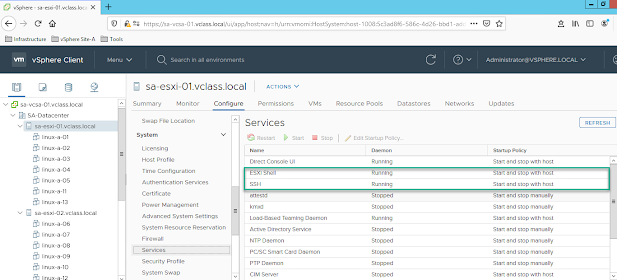
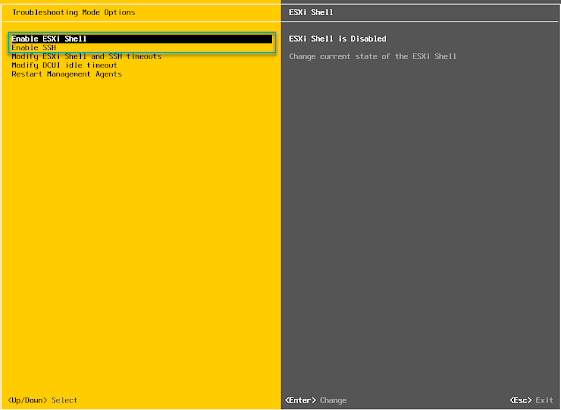
Enabling SSH and ESXi Shell via the VMware vSphere Client and DCUI

 This week I've been preparing for an Optimise and Troubleshooting Fast Track course and in this course we use the the command line a lot.

There's a number of different ways to enable SSH and the ESXi Shell.

One way is via the vSphere client

Launch the client

Hosts and Clusters View, select host, select configure tab and then Services and start the ESXi Shell and SSH


Another method is from the ESI hosts Direct Console User Interface DCUI

Login to the DCUI via the F2 key, go to Troubleshooting options and enable the services.


Thursday, 7 October 2021

VMworld 2021 Imagine That - Raghu Raghuram General session overview


This years VMworld, was again a virtual event, and the theme of this year’s VMworld was multi-cloud.

In his general session Raghu Raghuram – CEO VMware laid out his vision for the future of multi-cloud technology, providing a view into the innovations VMware is driving at the intersection of clouds and apps. He explored how leading organizations are challenging the status quo to move fast, gain competitive advantage and stay secure.

VMware have moved quickly from an on-premises virtualisation company to a leader in multi-cloud, as companies transition from mono-cloud, one public cloud to a true multi-cloud technology, VMware are there to ease the transition.

Companies now have choice, don’t pick one cloud, pick the cloud/clouds that best suit your applications and business needs.

The two main drivers for multi-cloud are.

  •   “I want to innovate using ‘best of the best’ services from different clouds.”
  •  “I want to avoid lock in to one cloud, and have the freedom to move apps when needed.”

VMware’s analysis shows that:

  •  464 Average number of applications used in a typical enterprise company
  • 75% of businesses now use 2 or more public clouds
  •  40% moving to 3 or more public clouds, sovereign clouds, or service providers

The challenge becomes, “how do I manage, secure, and utilise this diverse set of technologies/clouds?”

We are therefore presented with some options, do we prioritise developer autonomy or DevSecOPs efficiency, do we prioritise Enterprise apps on any cloud, or full control with cost savings, and finally, do we prioritise anywhere access for employees, or world class security?

VMware believe we should have it all.

VMware move to Chapter 3

·         Chapter 1 – Virtualisation Leader

·         Chapter 2 – Private cloud leader with Software Defined Datacentre

·         Chapter 3 – Multi-Cloud and application leader

In the session, Raghu introduced VMware Cross-Cloud Services – more information in upcoming posts

  • ·        Application Platform – Tanzu Application Platform
  • ·         Cloud Infrastructure – Project Artic
  • ·         Cloud Management – Project Ensemble
  • ·         Security and Networking – Service Mesh and Kubernetes Security
  • ·         Anywhere Workspace and Edge – VMware Edge Compute Stack


Watch out for more information on these new products coming from VMware


Friday, 13 August 2021

Finding out which VMs have VMtools installed (not PowerCLI)


We’ve been talking about snapshots this week, and as part of the discussions we thought about the question:

How do we list VMs with VMware Tools installed?

My answer, use PowerCLI.

However, some great suggestions came back.

Use life cycle manger. We select the Cluster > Updates > VMware Tools

The Tools Status column then shows as

  • Upgrade Available
  • Guest Managed
  • Not Installed
  • Unknown 
  • Up to Date


The other suggestion, enable the column in the VMware vSphere Client.

By default, we don’t see the column for VMware Tools


Select one of the columns and then select the down arrow, and select View/Hide Columns and then select the VMtools Options, and now you have the view showing VMtools on the VMs


Saturday, 19 June 2021

Limiting the Number of VMware Virtual Machine Snapshots

 Snapshots have their uses; we can use them to repeatably return back to a virtual machines previous state.

When we take a snapshot we capture the virtual machines hard disk, hardware and optionally the memory state.

Within VMware, we create three state files

·         Disk files                          -Delta.VMDK VMFS5 less than 2TB virtual disk

·         Hardware state                 .vmsn

·         Memory State                  .vmem

These snapshots then allow us to revert back to a previous state if something goes wrong, for example a software update fails

However, VMware has some best practices for using Snapshots.

  • Do not use snapshots as backups
  • Do not use a single snapshot for more than 72 hours
  • When using a third-party backup software, ensure that snapshots are deleted after a successful backup.
  • Maximum of 32 snapshots are supported in a chain. However, for a better performance use only 2 to 3 snapshots.

The last point is quite interesting, the more snapshots we take, the slower, potentially the VM will run, but most importantly, the VM will take up a lot of additional disk space, as the snapshot disk file increases in size.

VMware however, have a setting we can add to the VMs .vmx file, we set the maximum number of snapshots for a virtual machine by editing the snapshot.maxSnapshots = n variable of the configuration file. 

Once we are in the vSphere Client, right click and edit your VM settings, select VM options and then select Advanced, then locate Configuaration Parameters, and select EDIT CONFIGURATION

Then select ADD CONFIGURATION PARAMS

Then type for max of 2 snapshots, and click OK

Snapshot.maxSnapshots              2


 Now we can only take a maximum of 2 snapshots against this machine.


Friday, 18 June 2021

Managing User Accounts VMware vSphere: Best Practices


One of the recommendations for managing vSphere is to add your ESXi hosts to Active Directory and authentication to the client by using an AD account.

VMware give us some best practices for managing user accounts

On an ESXi host, the root user account is the most powerful user account on the system. The user root can access all files and all commands. Securing this account is the most important step that you can take to secure an ESXi host.

Whenever possible, use the vSphere Client to log in to the vCenter Server system and manage your ESXi hosts. In some unusual circumstances, for example, when the vCenter Server system is down, you use VMware Host Client to connect directly to the ESXi host.


Although you can log in to your ESXi host through the vSphere CLI or through vSphere ESXi Shell, these access methods should be reserved for troubleshooting or configuration that cannot be accomplished by using VMware Host Client.

 
If a host must be managed directly, avoid creating local users on the host. If possible, join the host to a Windows domain and log in with domain credentials instead.

To add an ESXi host to Active Directory, authenticate to your ESXi host via the host client and highlight Manage, select the Security& Users tab, then select Authentication, and then select Join Domain and fill in relevant information for your domain.


When we add the ESXi hosts to Active Directory, by default anyone who is a member of the AD group ESX Admins automatically have root privileges on ESXi hosts.

If we split AD and VMware into different IT departments, this could mean that our AD administrators could also manage our ESXi hosts by creating a group called ESX Admins and adding themselves to that group.

However, we can modify this functionality. We achieve this through the advanced configuration on an ESXi host

Login to the vSphere Host Client, once authenticated go to your ESXi host and highlight Manage, select Advanced settings and then search for admins


You’ll be presented with three options and they are:

Config.HostAgent.plugins.hostsvc.esxAdminsGroup       This option specifies the Active Directory group name that is automatically granted Administrator privileges on the ESXi host.

Config.HostAgent.plugins.hostsvc.esxAdminsGroupAutoAdd     This option controls whether the group specified by “esxAdminsGroup” is automatically granted administrator permission, values are True or False

Config.HostAgent.plugins.hostsvc.esxAdminsGroupUpdateInterval        This option specifies the interval between checks for whether the group specified by “esxAdminsGroup’ has appeared in Active Directory, value is in minutes.


Friday, 4 June 2021

The 3 steps to becoming a VCP-DCV 2021


The VMware Certified Professional – Data Centre Virtualisation 2021

I won’t lie the last 16 months have been some of the busiest that I’ve known whilst working for QA, and I’m certainly not complaining, I’ve taught 100% virtual courses and this has meant lots of time at home, before lockdown I would spend over 26 weeks away from home per year.

The only downside was that I haven’t been able to sit any exams, just too busy, and I’m working on my work/life balance. I did become a Mental Health First Aider during lockdown and finding you time is also important, that may mean study, just not for me.

Now things are calming down, it’s time to get back on the certification trail and I’m starting with the VMware Certified Professional – Data Centre Virtualisation 2021 exam number VMware vSphere 7.x (2V0-21.20)

Where to Start

There are 3 steps to becoming certified.

1)    Recommended, gain experience with VMware vSphere 7, you will be expected to know how to perform various tasks.

2)    Required, sit on a qualifying VMware course, I’ll mention my three preferred later in this post.

3)    Required, pass the exam, delivered by Pearson Vue testing.

To gain experience can be done in a number of ways.

·         You could play with your work kit, however the rest of the IT department may get a bit upset with this.

·         Build a test lab, I use VMware workstation and create VMs within the product. It works really well.

·         Use VMware Hands on Labs, I also visit this quite a bit, there’s lots of labs covering all aspects of vSphere.

The three courses I would recommend.

·         VMware vSphere: Install, Configure, Manage [V7]

·         VMware vSphere: Fast Track [V7]

·         VMware vSphere: Optimize and Scale [V7] – We don’t run this course that often as it is an advanced course and most people will pick one of the other two, but if you want it, we’ll run it.


No course can possibly cover all aspects of the product in 5 days, so I’d also recommend looking at the exam guide and if you’re up to it read all the associated documents mentioned, especially the network, storage, security, high availability, and resource management guides.


Now the important bit

Pass the exam.

The exam consists of 70 multiple choice questions, and you have 130 minutes, the exam is delivered via Pearson VUE and can be sat either in a Pearson VUE testing centre or can be done as a remotely monitored (proctored) exam from home.

300 is a pass, don’t think of a percentage or how many do I need to get right, that’s not the way it works.

I’ve sat many VMware exams, actually over 20 so far, and if you’ve put the work in, they’re extremely passible, I would recommend, answering all the questions you’re 100% sure of, mark the others, and return back to them, if you run out of time you fail, so try to remove that stress by not sitting for 10 minutes trying to think of an answer.

Finally best wishes for the exam, I never wish good luck, we make our own luck, if you’ve done the work you’ll pass.